Getting Started with Blue Roster: password reset

Updated: Feb 2
Welcome to Blue Roster, your centralized solution for managing employee schedules and assigning workload. Whether you are an administrator setting up the system or an employee checking your daily tasks, Blue Roster provides a flexible, browser-based experience accessible from any device.
Getting Started
Blue Roster is a web-based application. You do not need to download software from an app store to begin; you simply need a device with internet access and a web browser (such as Chrome, Firefox, Edge, or Safari).
Initial Login & Password Setup
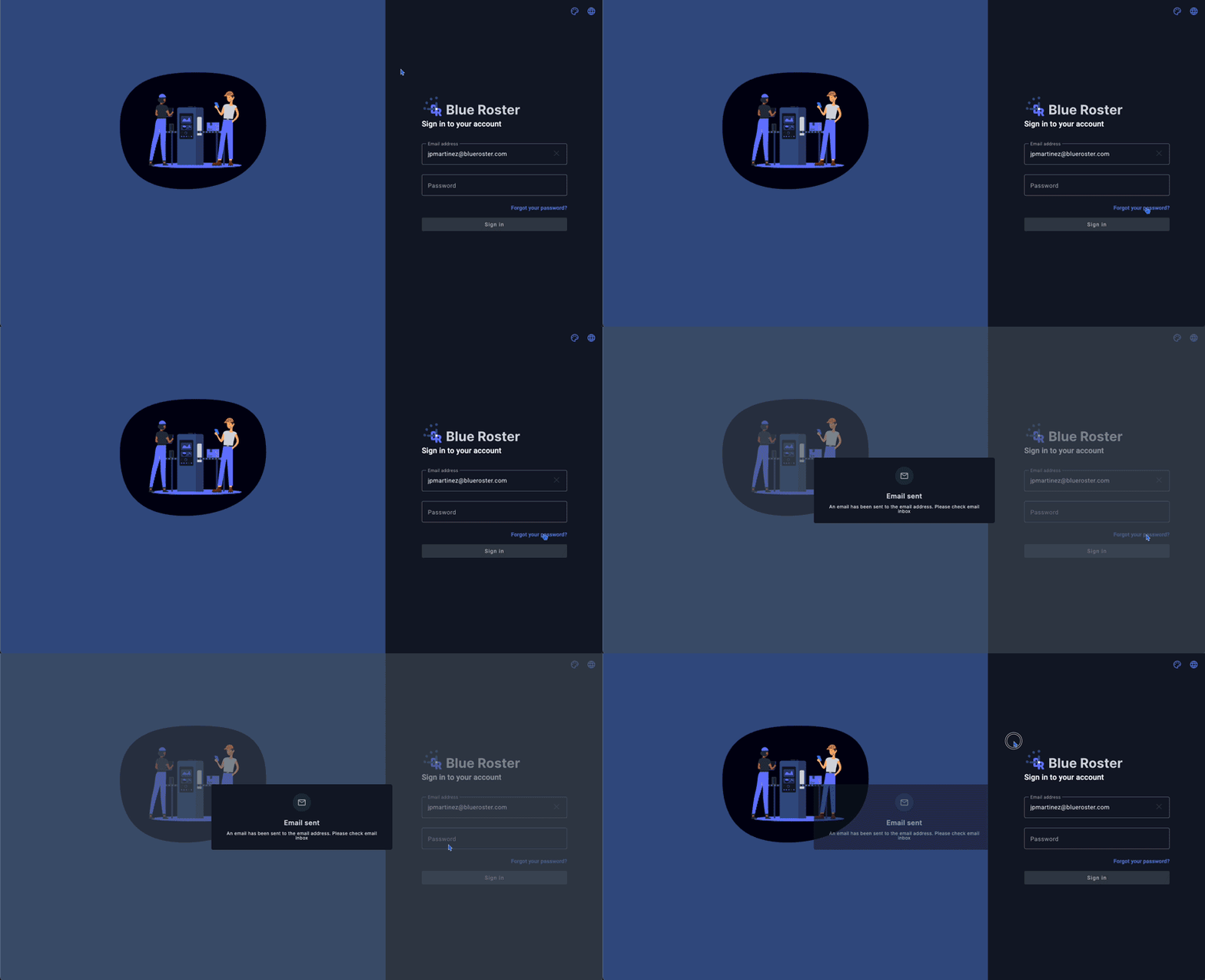
Since your account is created by your organization, you will not have a password the first time you visit. Follow these steps to gain access:
Navigate to your URL: Open your browser and type in your company-specific link:
Admins: [yourcompanyname].blueroster.com
Employees: [yourcompanyname].myschedule.blueroster.com
Enter your Email: Use your official company email address.
Request Password: Click the "Forgot my password" link.
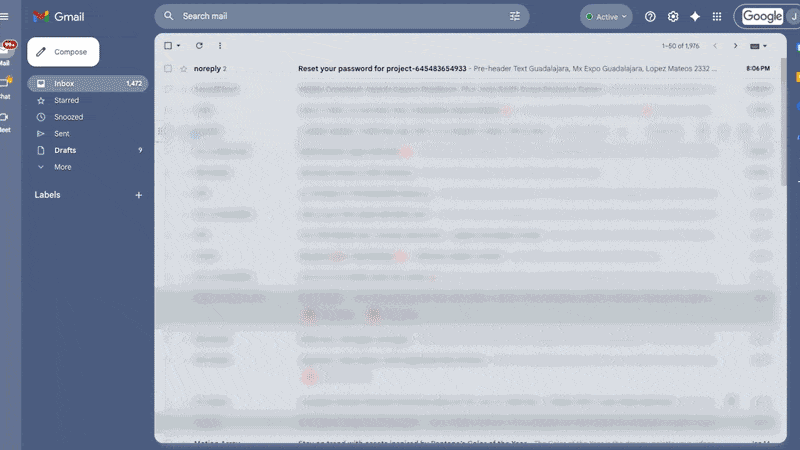
Check your Email: Look for a message from Blue Roster.
Note: If you don't see it in your inbox within a few minutes, check your Spam folder.
Set Password: Click the "Set new password" button in the email, enter your desired password, and click Save.
Sign In: Return to the login page and enter your credentials to enter the application.
Key Features
Universal Accessibility: Access your admin functions or employee schedules via smartphone, tablet, laptop, or desktop.
Real-Time Schedules: View up-to-date shift information and scheduled items.
Mobile Integration: Ability to save the tool as a shortcut icon on your mobile home screen as a progressive web application that uses minimal mobile device memory.
Automated Notifications: Password resets and system alerts sent directly to your company email.
Employee-Specific Section
As an employee, your primary hub is the My Schedule screen. This is designed to give you a clear view of your tasks being assigned on normal workdays, overtime days, or days you swapped with fellow employees (if the feature is available for your company).
Daily Use
Viewing your Schedule: Once logged in, the system defaults to the My Schedule menu item.
Current Status: The app displays items for the current date. If you are not scheduled to work, the system will explicitly show you are on your "Day Off."
Mobile Convenience: To access Blue Roster quickly, you can create a home screen icon:
Open the Blue Roster link in your phone's browser.
Follow your phone's specific instructions (e.g., "Add to Home Screen" on iPhone/Safari or "Install App/Add to Home Screen" on Android/Chrome).
This creates a Blue Roster icon alongside your other apps for one-tap access.
Administrator-Specific Section
The Admin Application is the backend control center where you manage the broader company environment.
Management & Setup
Company URL: Your admin portal is located at [yourcompanyname].blueroster.com.
System Entry: Admins follow the same "Forgot Password" protocol for the initial setup to ensure secure, encrypted access.
Employee Access: Admins are responsible for ensuring employees have the correct ...myschedule.blueroster.com link to access their specific portal.
[Insert diagram showing the distinction between the Admin URL and the Employee Schedule URL]
Best Practices
Security: Never share your login credentials. If you suspect your account is compromised, use the "Forgot my password" feature immediately to reset it.
Browser Consistency: While Blue Roster works on all browsers, keep your browser updated to the latest version for the best performance.
Bookmark Your Link: Save your specific company Blue Roster URL to your browser favorites to avoid typing errors.
Check Spam Regularly: If you are expecting a system notification or password reset, always check your spam folder before requesting a second link.
Troubleshooting
Issue | Solution |
Password email not received | Wait 2–3 minutes. Check your Spam or Junk folders. Ensure you typed your company email correctly. |
Login page won't load | Check your internet connection. Ensure you are using the correct URL (Admins vs. Employees). |
Mobile icon disappeared | Re-open the link in your mobile browser and use the "Add to Home Screen" function again. |
"Day Off" message | This is a feature, not an error! It indicates you have no items scheduled for the current date. |
Glossary
Admin Application: The portal used by managers to configure the system and user access.
Employee Application (My Schedule): The portal used by staff to view their daily work items and status.
Forgot My Password: A security feature that sends a unique reset link to your registered email.
Home Screen Icon: A shortcut on a smartphone that allows the web-based tool to be opened like a standard app.


