top of page
How can we help you?
Browse our knowledge base or browse categories to find answers to common questions and detailed guidelines.


Complete Administrator Manual
Target Audience: System Administrators and Department Supervisors Core Purpose: To synchronize production demands with workforce availability through a centralized digital agenda. 1. Roles: Defining Access Purpose: Ensure users have the correct level of access to the system. Key Functions: Define permissions for the Admin Application vs. the Employee Application. Procedure: To create a new role, click Add, name the role (e.g., "Shift Lead"), and select which menu items they a
2 min read


Roles & Permissions
Controlling what users can see and edit.
2 min read


Schedules
Placing specific people into the timing blueprints.
2 min read


Troubleshooting & FAQ Summary
Solving common login or staffing errors.
2 min read


Give Feedback
Communicating with the Blue Roster tech team.
1 min read


Gantt Views
Getting a high-level view of people and production.
2 min read


Workload
Uploading or creating the actual work requirements.
2 min read


Schedule Catalogs
Building the empty timing rules and rotations.
2 min read


Catalogs
Setting up the foundational data (Jobs, Places, Users).
2 min read


Action Center
Managing the day-to-day "holes" and requests.
2 min read


Introduction to the Administrator Application
This guide provides a comprehensive overview of the Blue Roster Administrator Application, focusing on system management and setup features. Blue Roster is a digital management tool designed to coordinate organizational workloads with employee scheduling. The Administrator application serves as the central hub for defining organizational structures, managing user roles, and setting up production requirements. Getting Started Initial Login and Navigation System Access: Access
3 min read


Quick Start on Mobile
Get your schedule on your home screen in 3 easy steps. 1. Access Your Portal Open the browser on your phone (Safari for iPhone, Chrome for Android) and type in: [yourcompanyname] myschedule.blueroster.com 2. Set Your Password (First Time Only) Enter your company email address. Tap " Forgot my password ". Open your email app and find the message from Blue Roster . (Check Spam if you don't see it!) Tap " Set new password ", create your password, and save it. Return to the logi
1 min read
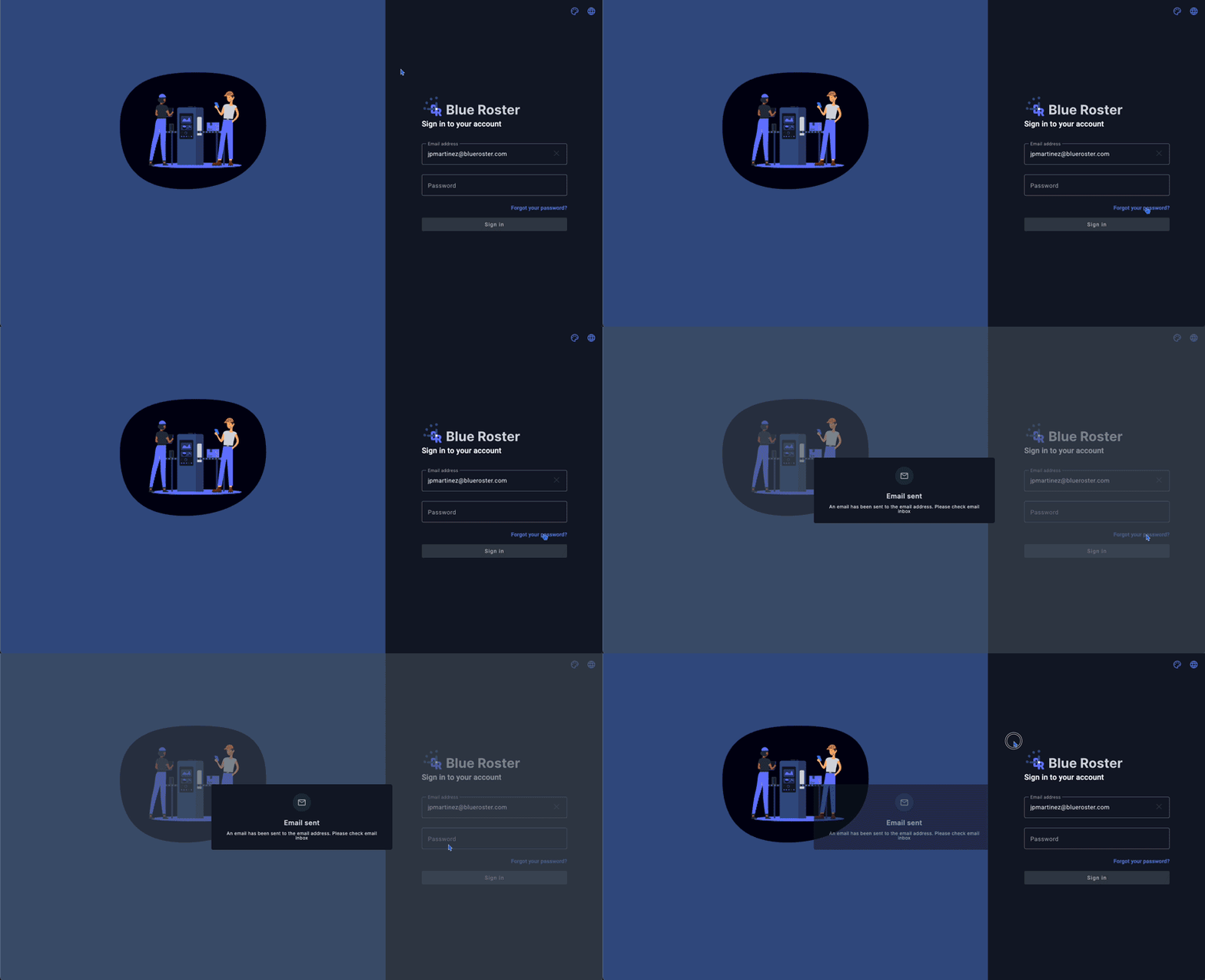
Getting Started with Blue Roster: password reset
Welcome to Blue Roster, your centralized solution for managing employee schedules and assigning workload. Whether you are an administrator setting up the system or an employee checking your daily tasks, Blue Roster provides a flexible, browser-based experience accessible from any device. Getting Started Blue Roster is a web-based application. You do not need to download software from an app store to begin; you simply need a device with internet access and a web browser (such
3 min read
bottom of page